

Press Mode, hold Adjust, tap Search to toggle 12/24H, then press Adjust.
If you want to master how to change 24 hour time on Casio Illuminator, you are in the right place. I have set up many Casio models over the years. Some swap formats with one tap.
Others need a few steps. This guide breaks it down by buttons and by model. You will learn fast, avoid mistakes, and keep your watch on time without stress.
What to know before you start?
Casio Illuminator watches share a common layout. Most have four buttons. Their labels may differ by model, but they work in similar ways.
- Adjust sets or saves settings. It is often the top left button.
- Mode switches between Time, Alarm, Stopwatch, and more. It is often the bottom left.
- Light turns the backlight on. It is often the top right.
- Search, Start, or Forward changes values. It is often the bottom right.
Why this matters: the 12/24H format is a setting. You can often reach it with Adjust and toggle with the Search or Forward button.
Key signs you are in 12-hour format:
- The screen shows AM or PM.
- 12 noon shows as 12:00 PM.
Key signs you are in 24-hour format:
- The screen shows 13:00 to 23:59 for the afternoon and night.
- There is no AM or PM tag.
If you just want a fast answer on how to change 24 hour time on Casio Illuminator, try the quick method below. If it does not work, use the full steps that follow.
I learned these moves after helping friends with models from the F-91W to the AE1200 and a few G‑Shocks. Button names differ, but the logic stays the same.
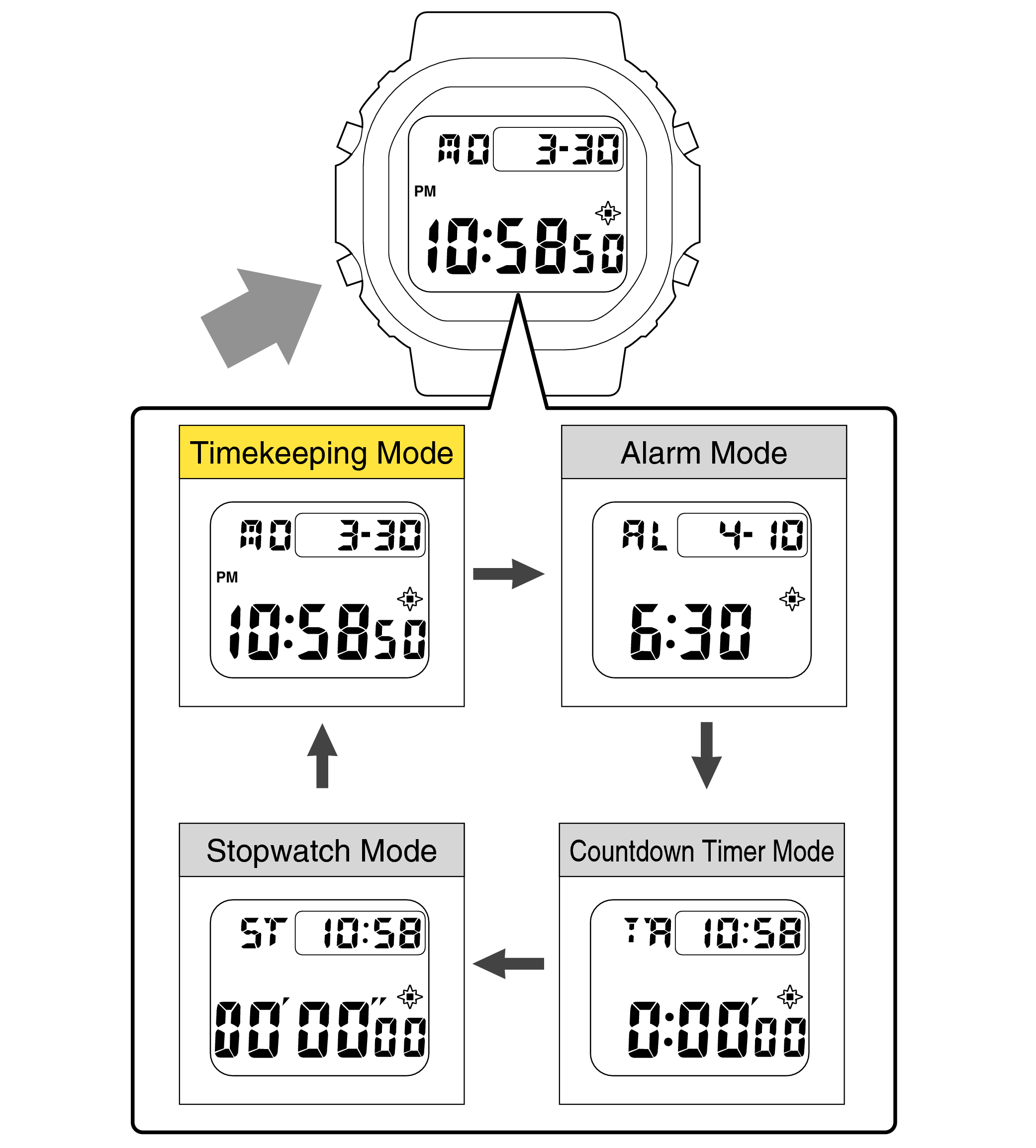
Quick methods to change 24-hour time
Many Casio Illuminator models offer two simple paths. Try Method A first. If it does not switch the format, use Method B.
Method A: One-button toggle in Timekeeping mode
- Make sure you are on the main time screen.
- Press Adjust once. On some AE and G‑Shock models, the time jumps between 12H and 24H.
- If nothing happens, go to Method B.
Method B: Use the setting mode
- Press Mode until you see the main time.
- Hold Adjust until something starts to flash. On some watches, the seconds flash first.
- Press Mode to move to the hour field if needed.
- Press Search or Forward to swap between 12H and 24H.
- Press Adjust to save and return to time.
This covers how to change 24 hour time on Casio Illuminator for most cases. If your screen looks different, check the model tips below.

Step-by-step by model family
Not all Illuminator watches switch in the same way. Use the guide below to match your watch. You can find your module number on the back. It is a small four-digit code. You can use it to confirm steps in the user manual.
F‑91W, F‑105W, and similar three-button models
Press Mode until you see the main time.
- Hold Adjust until the seconds flash.
- Press Mode until the hour flashes.
- Press the bottom right button to toggle 12H or 24H.
- Press Adjust to save.
AE1200 series and many AE models
- From the time screen, press Adjust once to toggle 12H and 24H.
- If it does not change, hold Adjust to enter settings.
- Press Mode until you reach hours.
- Press Search to switch 12H or 24H.
- Press Adjust to save.
W‑96H, W‑800H, W‑86, and similar W series
- Go to the main time.
- Hold Adjust until the seconds flash.
- Press Mode to reach the hour setting.
- Press Search to toggle 12H or 24H.
- Press Adjust to exit.
Classic G‑Shock Illuminator models like DW‑5600, DW‑6900
- Start on the home time.
- Hold Adjust until the city code or seconds flash.
- Press Mode a few times until you see the 12H/24H option or reach the hours.
- Press Forward to toggle 12H or 24H.
- Press Adjust to save.
Baby‑G with Illuminator
- Go to the time screen.
- Hold Adjust until a field flashes.
- Press Mode to find the hour or the 12H/24H option.
- Press Forward to switch formats.
- Press Adjust to exit.
These steps match how to change 24 hour time on Casio Illuminator across many lines. Your button names could vary. If so, match the position. Adjust is almost always top left. Search or Forward is usually bottom right.

Detailed walkthrough with pictures in mind
Picture the screen in Timekeeping mode. That is your home base. Once you hold Adjust and see a flash, you are in. The field that flashes first may not be hours. That is fine. Press Mode to move through options, one at a time.
- Seconds
- Hour
- Minutes
- Year, month, day
- 12H/24H on some models
- DST or city on world time models
At the hour or 12/24H step, press Search or Forward. The time jumps. AM and PM show up for 12H. The 24H format loses the AM and PM tags. Press Adjust to lock it in. This is the core flow of how to change 24 hour time on Casio Illuminator.
I often tell friends to think of these buttons like a simple menu. Adjust opens and closes the menu. Mode moves through the list. Search or Forward changes the value.
Troubleshooting and common pitfalls
If the format does not change, try these checks.
- You may not be in Timekeeping mode. Press Mode until you see the main time.
- The wrong field is flashing. Press Mode until the hour or 12/24H appears.
- You are pressing Light instead of Search. Use the bottom right button to change values.
- Some AE models toggle with a single press of Adjust on the time screen. Try that first.
Edge cases you may face
- World time vs home time. On multi-time watches, set the format in the home time screen.
- DST does not affect 12/24H. The format is separate from daylight saving time.
- Low battery signs. Dim light does not block this setting, but change the battery if needed.
If you still struggle with how to change 24 hour time on Casio Illuminator, find the four-digit module number on the case back. Use it to look up the user manual on the Casio support site. The manual will show exact button names for your model.
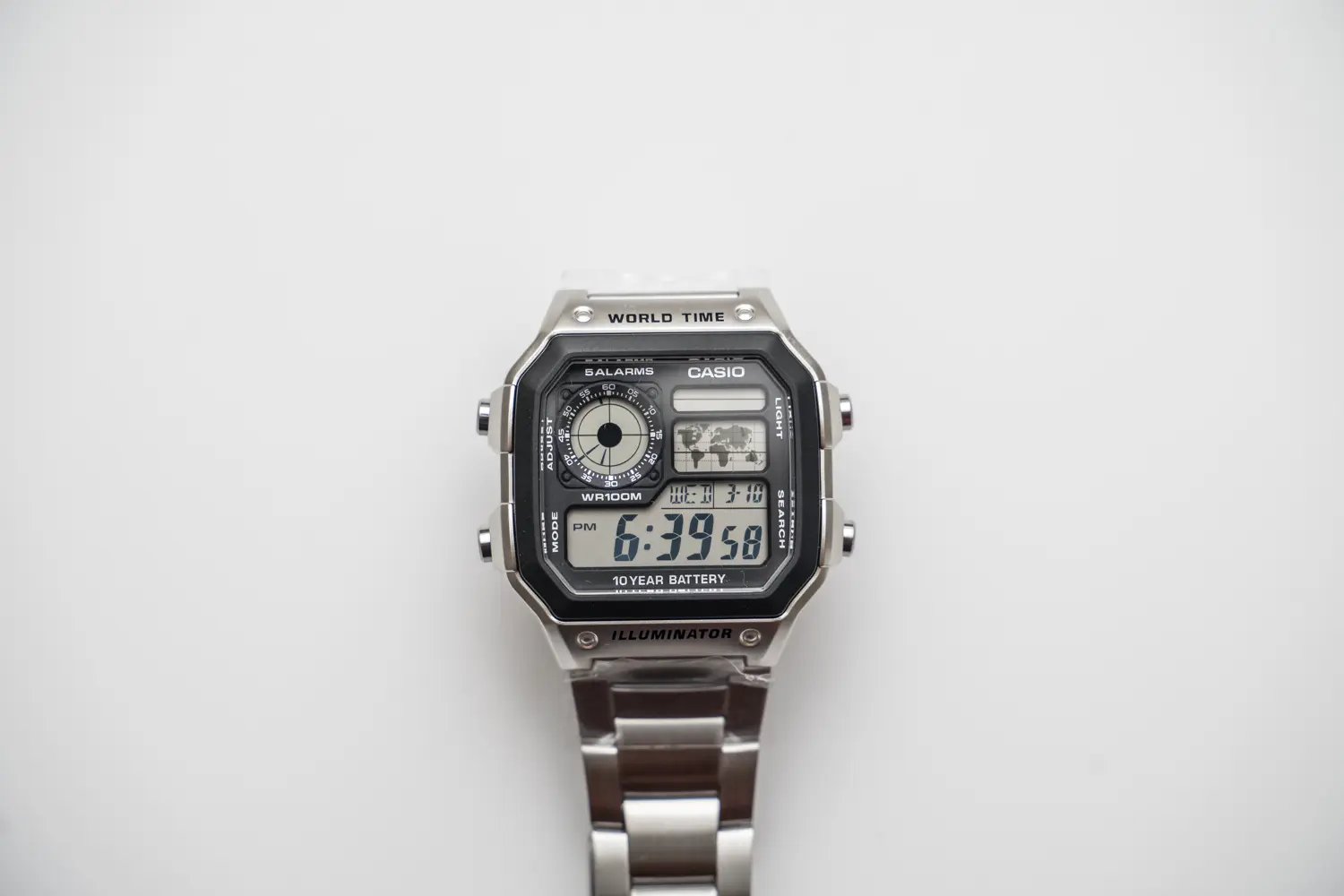
How to verify and sync after the switch?
Check that the time reads right after you change it.
- In 12H, confirm AM for morning and PM for afternoon.
- In 24H, 13:00 is 1 PM, 23:00 is 11 PM.
- Cross-check with your phone time.
Now review your alarms. In 12H, alarm at 7:00 PM is not the same as 7:00 AM. In 24H, an alarm at 19:00 is 7 PM. This is a common mistake. I once missed an evening run because my alarm was at 07:00 in 12H. Learn from that slip.
If you travel often, consider 24H. It avoids AM and PM errors. If you like classic style, 12H looks clean. The nice part is you now know how to change 24 hour time on Casio Illuminator in seconds.
Care and best practices
Good habits make this easy each time.
- Memorize the button map. Adjust opens. Mode moves. Search changes.
- Keep the module number handy. It makes manual lookups fast.
- Practice once. Switch to 24H, then back to 12H. Build muscle memory.
- Avoid pressing buttons under water unless your model supports it.
- Update alarms and world time after format changes.
I revisit how to change 24 hour time on Casio Illuminator for friends a few times a year. The same moves work again and again. With a quick drill, you will not need the manual.
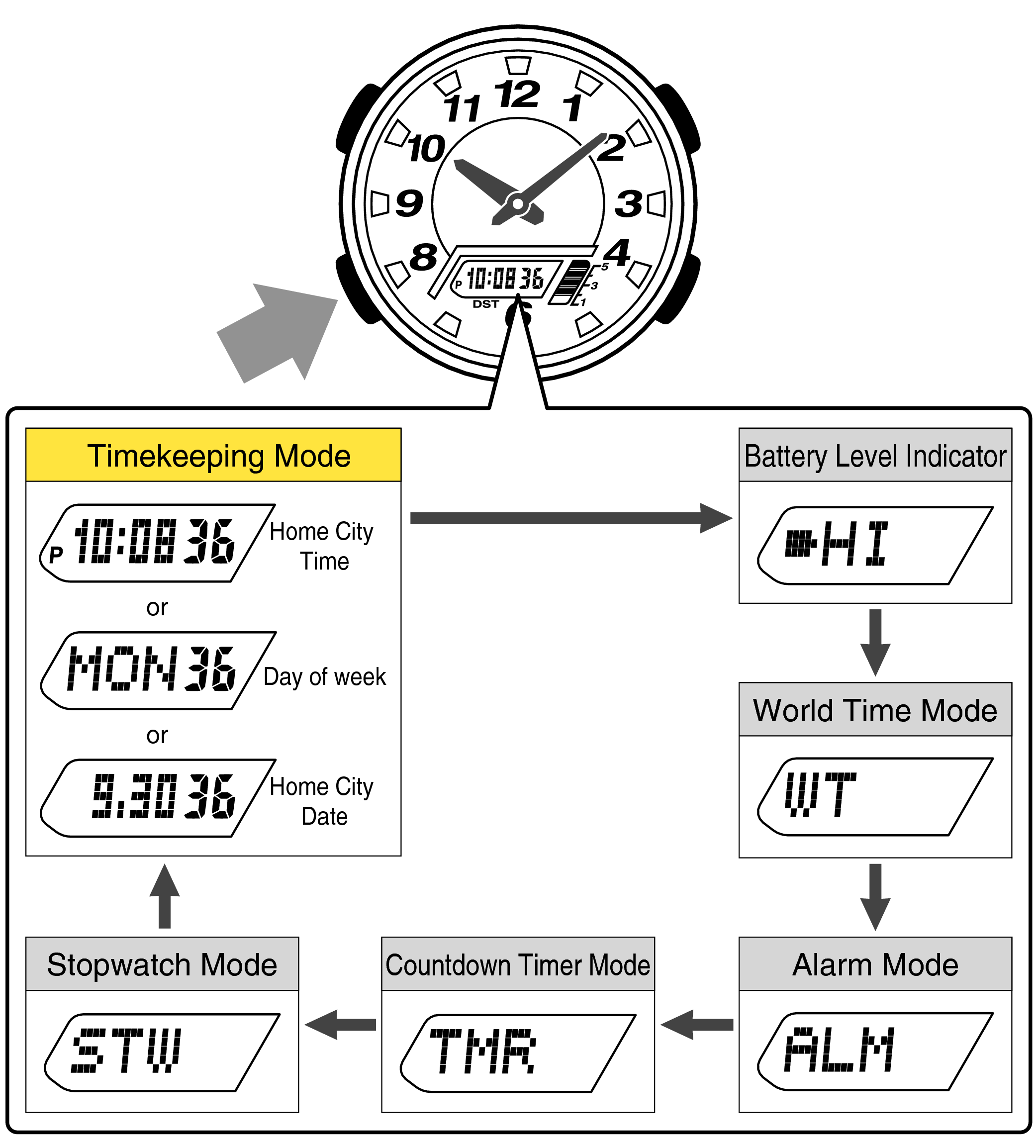
Frequently Asked Questions of how to change 24 hour time on casio illuminator
How do I know if my watch is in 12-hour or 24-hour mode?
Look for AM or PM on the screen to spot 12-hour mode. If you see 13:00 to 23:59, you are in 24-hour mode.
What if pressing Adjust once does not change the format?
Enter the setting mode by holding Adjust until something flashes. Then press Mode to find hours and use Search or Forward to toggle.
Does daylight saving time affect the 12/24-hour format?
No. DST shifts the clock by one hour but does not change 12H or 24H. You set the format on its own.
Can I change the format in World Time mode?
Use the home Timekeeping mode to set the format. World Time follows your home format on most models.
Where can I find exact steps for my model?
Check the four-digit module number on the case back. Use it to find the manual on the Casio support page for exact button names.
Why did my alarm go off at the wrong time after I switched?
You may have set it in 12H but read it like 24H, or the other way around. Recheck the alarm time after you switch formats.
Is there a risk of losing other settings when I change the format?
No. Changing 12/24H does not clear your time, alarms, or stopwatch data. It only changes how the time displays.
Conclusion
You now know how to change 24 hour time on Casio Illuminator with two simple methods. Try the one-button toggle first. If that fails, enter settings, move to hours, and use Search to switch. Save, verify, and update your alarms.
Use this small skill to make your watch fit your life. Practice the steps once so you can switch formats anytime. If this helped, share it with a friend, subscribe for more simple watch guides, or leave a comment with your model and questions.