

Hold Adjust, pick your Home City, toggle DST to On or Auto, then save.
If you want your Casio to match the local clock when summer time starts, this guide is for you. I will show how to set daylight saving time on Casio watch with clear steps, model tips, and common fixes.
I have set DST on dozens of Casio models in the field. You will learn the fast way, the app way, and the pro way to avoid errors.
What daylight saving time means on a Casio?
Daylight saving time, also called Summer Time, moves the time forward by one hour. On Casio watches, the DST setting can be Off, On, or Auto. Auto lets the watch shift by itself based on your Home City and the rules in its database.
Many Casio watches also sync time. Some use Bluetooth with a phone app. Some use radio signals like Multi Band 6. When sync is on, DST often follows the signal or app. You still need to set the right Home City. That is the base for offset and DST rules.
Universal steps: how to set daylight saving time on Casio watch
I will first show a method that works on most digital and analog‑digital Casio watches. Button names can vary by model. But the flow is the same.
Step-by-step on most non-Bluetooth models:
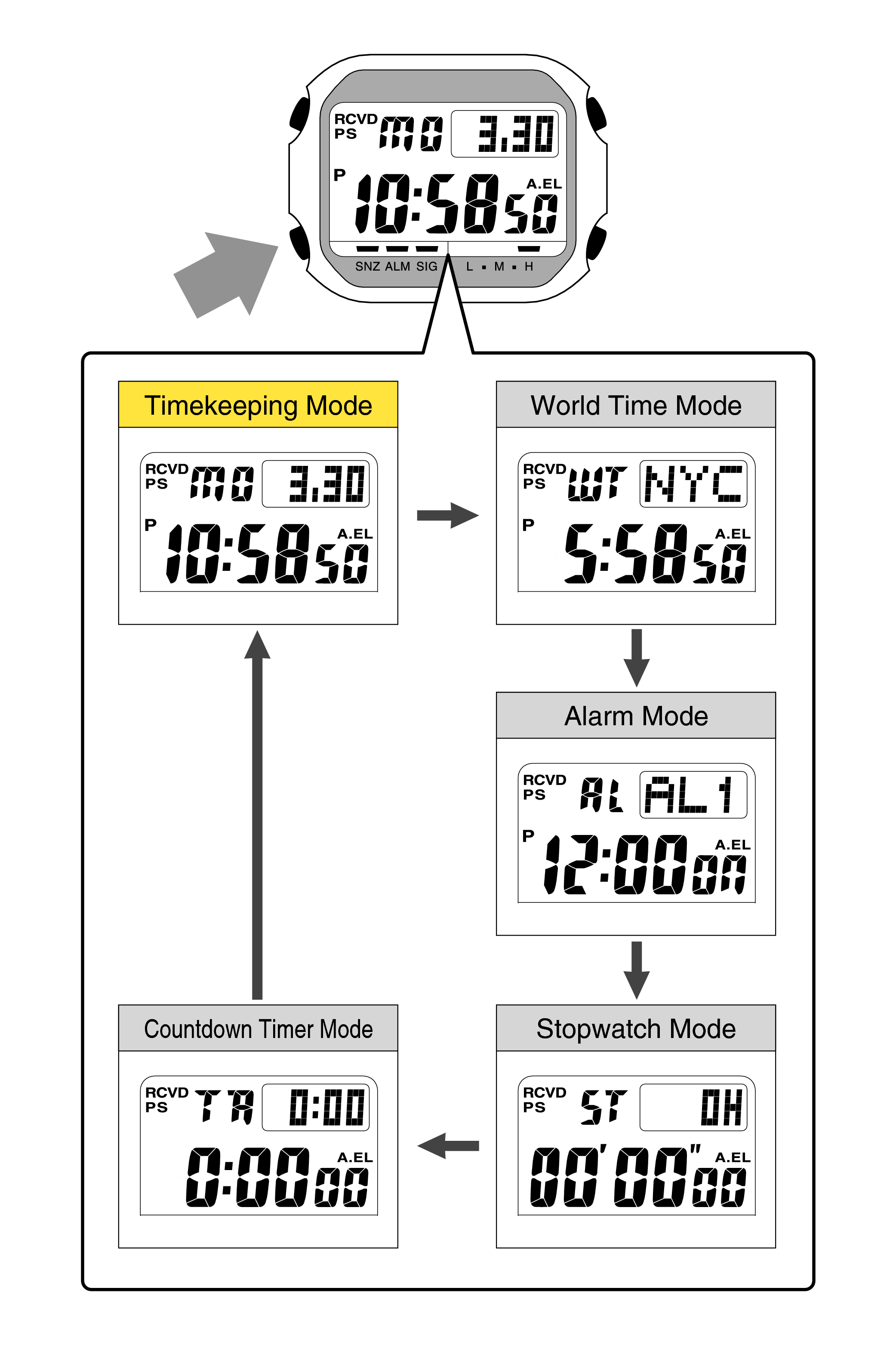
- Enter Timekeeping mode. If needed, press Mode until you see the time.
- Hold Adjust for 2 to 5 seconds until a city code or SET flashes.
- Use the buttons to pick your Home City. Choose the city for your time zone.
- Press Mode to move through settings until you reach DST or Summer Time.
- Select Auto if your region uses DST and you want it to switch by itself.
- Select On if you want to force the extra hour now.
- Select Off if your region does not use DST.
- Press Adjust to save and exit.
For analog-digital models with hands:
- After you set DST, the hands may move to match the new time.
- If they do not, do a hand home reset. You can find it in the same setting flow or in the manual.
For Bluetooth models:
- Open the official app and connect the watch.
- Set Home City and enable Automatic time adjustment and Automatic Daylight Saving Time.
- Sync once. The watch will follow the phone and local DST rules.
For radio-controlled models (Multi Band 6 or Wave Ceptor):
- Set the right Home City.
- Set DST to Auto.
- Do a manual receive in a clear area at night, or let Auto Receive run.
- The watch will apply DST based on the radio signal.
Use this section when you search how to set daylight saving time on casio watch for any series. These steps cover the core logic behind every model. They also help when the manual is not at hand.

Model-by-model guide
Below are quick paths for popular lines. Button letters may differ. Use them as a pattern for your exact module number.
G-Shock digital (e.g., DW, GW, GD, GX series)
- Timekeeping mode.
- Hold Adjust until the city flashes.
- Press Mode to reach DST.
- Toggle Auto, On, or Off.
- Press Adjust to save.
Tip: On solar radio models, keep DST on Auto. The signal will handle changes.
G-Shock analog-digital (e.g., GA, GW-A, GA-2100)
- Timekeeping mode.
- Hold Adjust until the city flashes.
- Use the forward button to pick the city.
- Press Mode to find DST. Choose Auto, On, or Off.
- Save with Adjust. Hands will realign.
Lesson learned: If hands look off by one hour after DST, run the hand home setting to sync them.
Edifice Bluetooth
- Open the Edifice Connected app.
- Pair and set Home City.
- Enable Automatic DST and Automatic time adjustment.
- Sync. The watch will switch at the right time.
Pro Trek
- Timekeeping mode.
- Hold Adjust to enter settings.
- Pick the Home City.
- Go to DST and choose Auto, On, or Off.
- Save. Check sensor modes after, as some Pro Trek models show DST in their sub screens.
Classic and Vintage Casio (F-91W, AE series, basic analog)
- If DST is present in settings, follow the same flow.
- If there is no DST option, add one hour by setting the time forward.
- Note the change so you can set it back when DST ends.
These patterns reflect how to set daylight saving time on Casio watch across most families. If your buttons have different labels, the idea is the same: enter setting mode, set city, toggle DST, save.

How to set daylight saving time on Casio watch with the app?
Many modern Casio watches pair with a phone app. This is the most reliable way if you travel or if rules change.
- Confirm your watch uses the Casio Watches, G-Shock Connected, or Edifice Connected app.
- Pair the watch and allow location permission for accurate city data.
- In the app, set Home City to the city you live in, not just the time zone.
- Turn on Automatic time adjustment and Automatic DST.
- Tap Sync. The watch pulls the correct time, offset, and DST state.
Why this helps:
- The app has updated DST rules.
- When you land in a new city, the watch follows your phone.
- It reduces mistakes when you search how to set daylight saving time on casio watch during travel.

Troubleshooting and edge cases
DST not showing or stuck:
- Set the correct Home City first. Many errors come from the wrong city code.
- If your area does not use DST, Auto will do nothing. Use On only if you want a manual one-hour shift.
Hands off by one hour:
- Run hand home position correction. It aligns hands with the digital time.
- Low battery can also block hand moves on some models. Charge or replace the battery.
Radio-controlled not switching:
- Place the watch near a window overnight. Face the 12 o’clock toward the nearest transmitter region.
- Check Auto Receive is On. Set DST to Auto. Then do a manual receive.
Bluetooth will not sync:
- Reset Bluetooth in the app and on the watch.
- Ensure the app has location and Bluetooth permissions.
- Try airplane mode toggle on your phone, then re-pair.
Older analog without DST:
- There is no DST menu. Move the time forward by one hour in spring, and back in fall.
- Set a reminder in your phone to change it on the right date.
These fixes come from years of handling customer watches each spring and fall. They are the fastest path when you wonder how to set daylight saving time on casio watch but hit a snag.

Pro tips, care, and mistakes to avoid
- Always set the Home City first. DST depends on it. This is the step most people skip.
- Prefer Auto on models with radio or Bluetooth. It avoids midnight surprises.
- Keep your manual or module number handy. Search your module number plus DST for model specifics.
- After battery change or a reset, recheck DST and Home City. Defaults can change.
- If you travel often, leave DST on Auto and rely on the app for smooth shifts.
From my own use, the best habit is a quick quarterly check. One minute now saves you from showing up an hour early or late. If you ever doubt how to set daylight saving time on casio watch, fall back to the universal steps above.
Frequently Asked Questions of how to set daylight saving time on casio watch
What does Auto DST do on a Casio watch?
Auto DST follows known rules for your Home City. The watch shifts by one hour at the start and end of the season.
Why is my watch still one hour off after setting DST?
Your Home City may be wrong, or the hands need home position correction. Fix the city, then run hand sync if needed.
How do I find my Casio module number for exact steps?
Check the back of the case for a three or four-digit module. Use that number to search the official manual for precise DST steps.
Can I set DST on a basic analog Casio with no menu?
Yes, but you do it by moving the time forward one hour. Set it back when DST ends.
Will Bluetooth always fix DST for me?
Usually yes, if Automatic time and Automatic DST are on and your phone has the right city and time. You still need to sync at least once.
Do radio-controlled Casio watches handle DST by themselves?
They do when DST is set to Auto and the Home City matches the transmitter region. Let Auto Receive run at night for best results.
Conclusion
Setting daylight saving time on a Casio is simple once you know the pattern. Choose the right Home City, set DST to Auto when possible, and save. Use the app or radio sync to keep rules fresh and hands aligned.
Now put this to work. Pick up your watch, follow the universal steps, and set it right today. If this guide helped, subscribe for more quick watch fixes, or leave a comment with your model so I can share exact steps for you.