

Press Mode, find 12/24-hour setting, select 12-hour (H12), and confirm with Adjust.
If you want to know how to change casio watch to 12 hour time, you are in the right place. I work with Casio modules often and have helped many people switch formats fast.
In this guide, I show how to change casio watch to 12 hour time on popular models, why it matters, and how to fix common roadblocks. Follow along, and you will master this setting with ease.

Why the 12-hour format matters on Casio watches?
Many Casio watches ship in 24-hour format. That can cause mistakes in daily plans. Switching to 12-hour time shows AM and PM and reduces confusion. It also matches how time is shown on phones in the US.
Casio uses clear labels for this setting. You will see H12 for the 12-hour format. You will see H24 for the 24-hour format. Once you change it, the whole watch shifts to your choice.
Casio manuals confirm that the 12/24 option is part of basic time settings. The exact button names may vary by model. Yet the logic stays the same. You enter settings, find the 12/24 item, pick H12, and exit.
Identify your Casio model and buttons
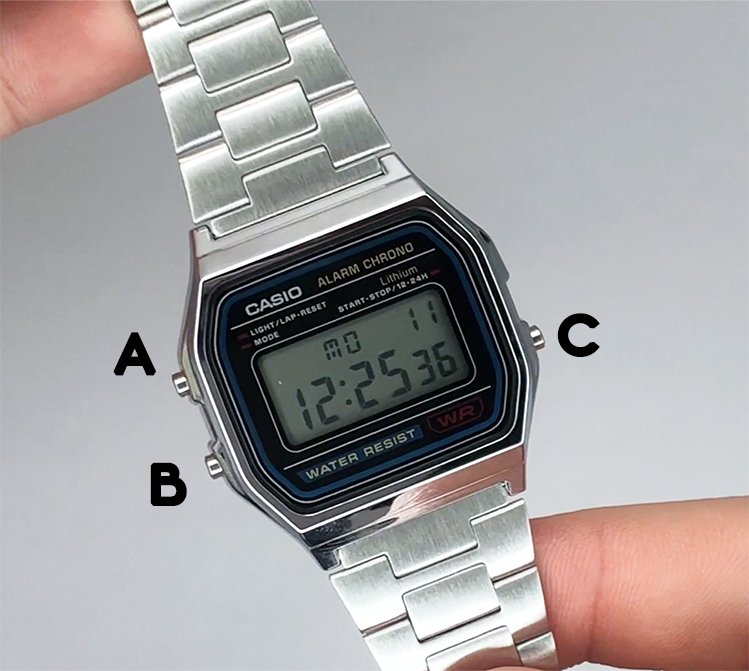
To know how to change casio watch to 12 hour time, note your button layout. Most Casio watches use four buttons.
Common names include:
- Adjust. Top left. Used to enter or save settings.
- Mode. Bottom left. Used to cycle through modes and fields.
- Start/Stop or Forward. Top right. Used to increase or toggle a value.
- Reset or Reverse. Bottom right. Used to decrease or toggle a value.
Check the case back for the module number. It is a short code like 3229 or 5611. You can look up the exact manual for that module. The manual will show the precise steps and button roles.
Tip from experience: Snap a photo of the case back. You will have the module number handy when you search for help. This saves time if your watch uses different labels like Search or Light.

Step-by-step: How to change Casio watch to 12 hour time by model
The fastest way to learn how to change casio watch to 12 hour time is by model family. Use the steps below that match your watch. If one path fails, try the other method shown for that family.
Basic digital (F-91W, A168, W-800H, AE series)
Method A: Change in settings mode
- From the main time screen, hold Adjust until the seconds blink.
- Press Mode to move through fields until you see 12/24 or H12/H24.
- Press Start/Stop to select H12.
- Press Adjust to save and return.
Method B: Quick toggle from time screen
- From the main time screen, press the top right or bottom right button once.
- If your model supports it, the watch will switch between H12 and H24.
Notes:
- Some classic digitals use the right-side button to toggle formats without going into settings.
- If you do not see H12/H24, use Method A.
G-Shock digital and analog-digital (DW, GA, GW, GBA, GBD)
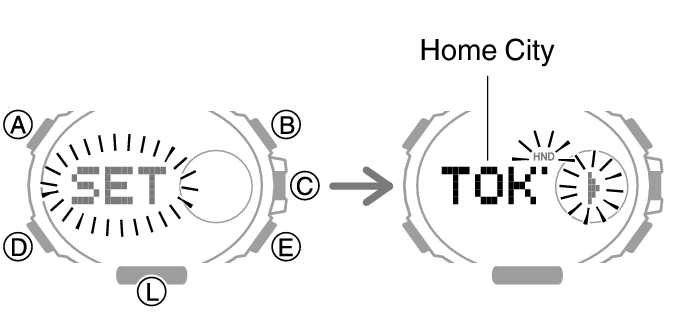
- From the timekeeping screen, hold Adjust for a few seconds. You will hear a beep.
- Press Mode to cycle fields. Stop when 12/24 or the time format is shown.
- Press Start/Stop or Forward to pick 12-hour.
- Press Adjust to exit and save.
Pro tip: On many G-Shock models, the time format applies to both Home Time and World Time displays. If the World Time still shows 24-hour, repeat the steps with that mode active.
Pro Trek and outdoor series (PRG, PRW)
- Hold Adjust from the main time until a setting field blinks.
- Press Mode to find the 12/24-hour option.
- Use the right-side button to select H12.
- Press Adjust to save.
These models have many sensors and fields. Keep tapping Mode to cycle. You will reach the time format after city code and DST.
Edifice analog-digital and Wave Ceptor
- Hold Adjust until the watch enters the setting mode.
- Press Mode to reach the time format screen.
- Use the right button to choose 12-hour time.
- Press Adjust to save.
If your Edifice is analog-only, it is already a 12-hour dial. There may be a small 24-hour sub-dial. That sub-dial mirrors AM and PM and is not a setting you can toggle.
Vintage and specialty modules
- Hold Adjust to enter settings.
- Tap Mode to find H12/H24.
- Press the right-side button to pick H12.
- Press Adjust to exit.
If your model uses Light as the top left button, that button may also act as Adjust. The action depends on your module number.
Personal note: I have set up dozens of AE and GA modules. The pattern never fails. Enter settings, cycle fields with Mode, toggle with the right button, and save with Adjust. If one button does not work, the other right button usually does.
Two reliable methods that work on most models
If you still need help on how to change casio watch to 12 hour time, use these two core methods. One of them will work on nearly any digital Casio.
Method 1: Use time setting mode
- Hold Adjust from the main time screen until something blinks.
- Press Mode to cycle fields until you see 12/24 or H12/H24.
- Press the top right or bottom right button to select H12.
- Press Adjust to save.
Method 2: Use a direct toggle
- From the main time screen, press the top right or bottom right button once.
- If the format changes, you are done. If not, use Method 1.
These methods come from Casio manuals and hands-on work with common modules. Button names may differ. The function stays the same.
Troubleshooting: When H12 or H24 does not appear
You tried to follow how to change casio watch to 12 hour time, but H12/H24 is missing. Here are fixes that I use in the field.
- Check the mode. Make sure you are in the main timekeeping screen, not stopwatch or timer.
- Cycle more fields. Many models put 12/24 after city and DST. Keep pressing Mode.
- Reset seconds first. On some modules, you must pass the seconds field before you can change the format.
- Update the city code. If the city code is unset, some settings hide until you set a home city.
- Replace the battery. Low power can block writes. If your watch resets any time you save, you may need a new battery.
- Read the module manual. Use the module number on the case back for exact button maps.
Edge cases:
- Analog-only watches use a 12-hour dial by design. There is no digital format to change.
- Radio-controlled models may re-sync time. Format will stay as you set it.
- Smart or Bluetooth models change the format in the app. Check the time format in the Casio app and sync.
AM/PM, daylight saving, and world time tips
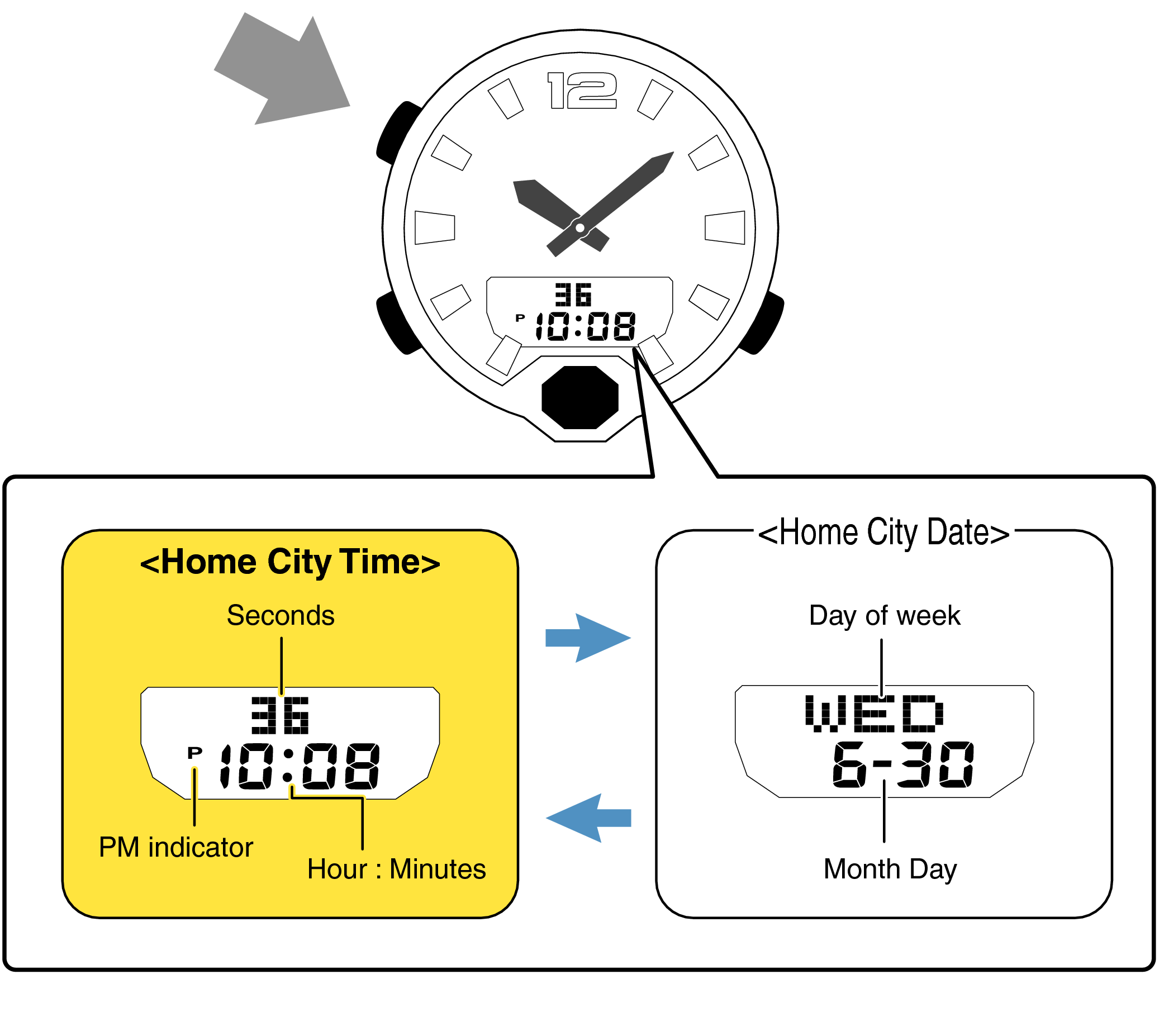
Switching to H12 is only part of the job. To keep AM and PM correct, set the home city and DST state as well.
- Set the home city first. Pick the city that matches your time zone.
- Set DST on or off. Wrong DST can flip AM to PM by an hour.
- Check World Time. If you use World Time a lot, confirm it shows 12-hour as well. Some models need a second toggle.
- Watch the noon flip. When you set 12:xx in 12-hour mode, confirm it shows PM at midday, not AM.
I test this by setting the time to 11:58 and waiting two minutes. At 12:00, I check the PM mark. This quick test prevents meeting mix-ups later.

Practical tips, common mistakes, and lessons learned
Over the years, I have seen the same errors. They are easy to fix.
- Do not exit too fast. If you press Mode to exit, your change may not save. Use Adjust to save.
- Do not hold the wrong button. A long press on the right buttons can start hand shift or light test. Always hold Adjust to enter settings.
- Do not skip the city code. A wrong city code will make the time wrong even in 12-hour format.
- Do not forget the app. With Bluetooth models, format may be controlled by the app. Sync after you change it.
Small habit that helps: After you change to H12, set an alarm for 12:05 PM. When it rings, you know PM is correct and saved.

Care, battery, and memory notes
Most Casio watches keep settings when you swap the battery. Some older modules can lose them. If your watch resets, plan to reapply how to change casio watch to 12 hour time after battery work.
- Use a fresh battery from a trusted brand.
- Do not short the contacts. A short can erase memory.
- If you see ERR or a full reset, set the home city, DST, and H12 again.
For watches with Tough Solar, a full discharge can clear settings. Charge the watch in bright light, then redo how to change casio watch to 12 hour time. It takes only a minute.
Frequently Asked Questions of how to change casio watch to 12 hour time
Why does my Casio keep showing 24-hour time after I change it?
You may be in World Time mode or a sub-mode. Go to the main time screen and change H12/H24 there, then save with Adjust.
Can an analog-only Casio change to 24-hour time?
No. An analog-only dial shows 12-hour by design. Some models add a 24-hour sub-dial, but that is not a toggle.
How do I find the exact steps for my model?
Look at the module number on the case back. Search that module number in the manual to see the exact button map and steps.
My G-Shock will not show H12/H24. What now?
Hold Adjust longer to enter settings. Keep pressing Mode until you see the format field. If it still does not appear, check the manual for that module.
Does changing to 12-hour affect alarms and timers?
Yes. The display follows 12-hour format, so alarms show AM or PM. The time counts the same, but the display will match H12.
Can I change the format in the Casio app?
On some Bluetooth models, yes. Open the watch’s settings in the app, set 12-hour time, and sync to update the watch.
Will radio-controlled time sync reset my 12-hour setting?
No. Time sync updates the time and date. It does not change your H12/H24 choice.
Conclusion
You now know how to change casio watch to 12 hour time on almost any model. Enter settings with Adjust, cycle fields with Mode, pick H12 with the right button, and save. If the format is hidden, set the home city and try again.
Make the change today and cut time mistakes for good. If you found this useful, explore more guides, subscribe for updates, or leave a comment with your model and module number for tailored help.